Convex & WorkOS AuthKit
WorkOS AuthKit is an authentication solution that enables sign-in using passwords, social login providers, email one-time codes, two-factor authentication, and user management capabilities.
You can use your own WorkOS account with AuthKit or create a WorkOS account with Convex to create and do some configuration of AuthKit environments automatically.
Get started
Use the following command to start a new project. It will prompt you to select a framework and authentication option. Choose whichever framework you want and AuthKit as your authentication option:
npm create convex@latest
After that, launch your new application in dev mode:
cd my-app  # or whatever you name the directory
npm run dev
Follow the prompts to create a WorkOS team that will be associated with your Convex team. After this Convex deployments for projects in this team will be able to automatically provision and configure their own WorkOS environments.
That's it! After this you and other members of your Convex team can create and configure development WorkOS environments without visiting workos.com.
See AuthKit configuration in convex.json to modify the convex.json file in this template for your needs.
Configuring an existing WorkOS account
To use AuthKit with an existing WorkOS account you'll need to configure the
account and copy credentials into the Convex deployment and your local
.env.local file.
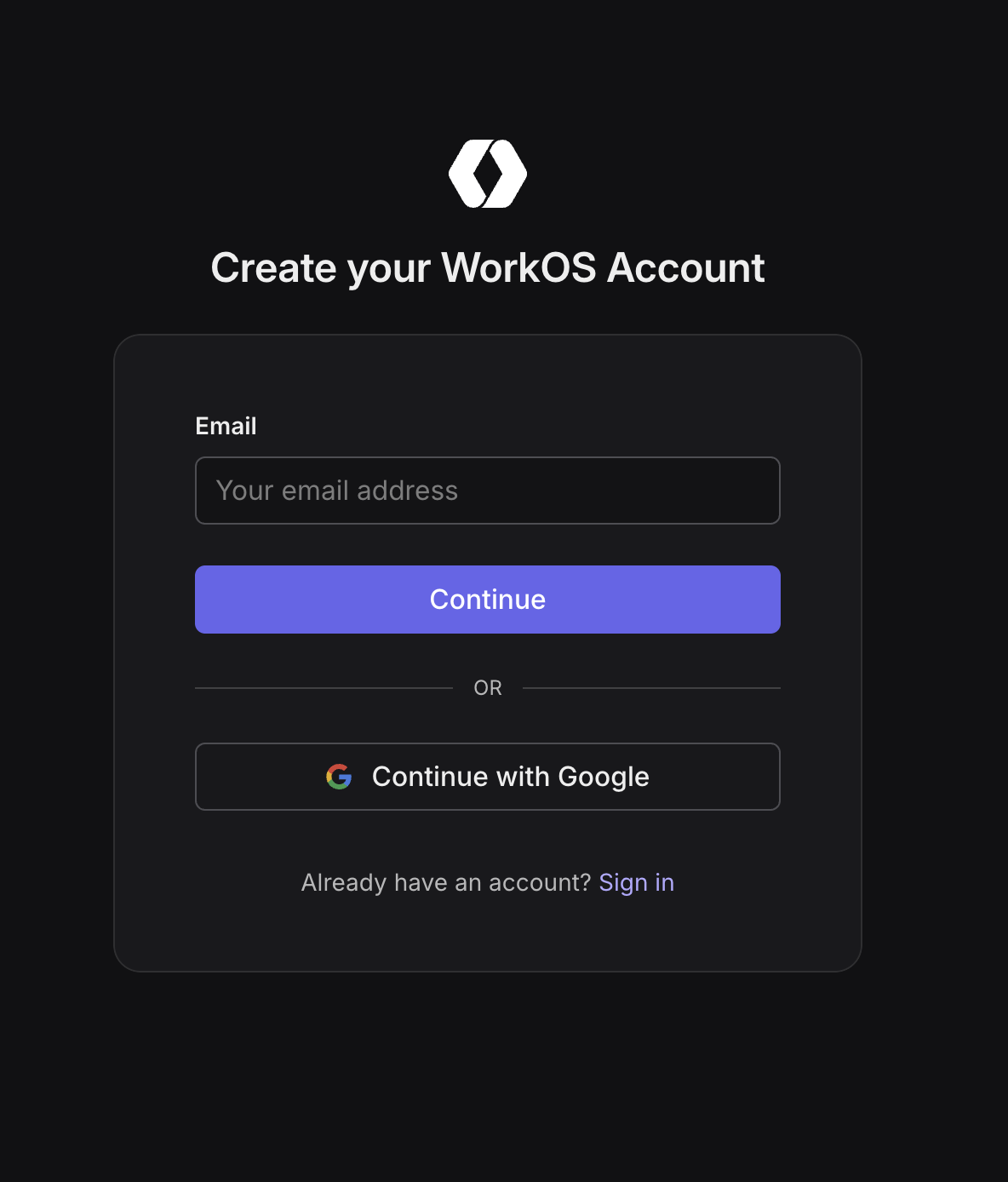
- Sign up for WorkOS
Sign up for a free WorkOS account at workos.com/sign-up.
- Set up AuthKit
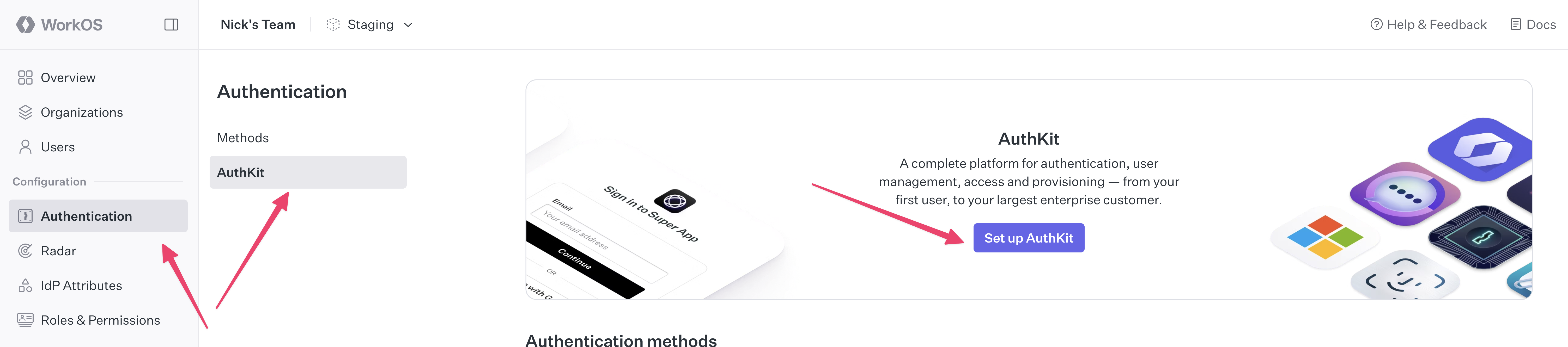
In the WorkOS Dashboard, navigate to Authentication and then to AuthKit. From here, click the Set up AuthKit button to enable AuthKit in your account.
- Complete AuthKit setup
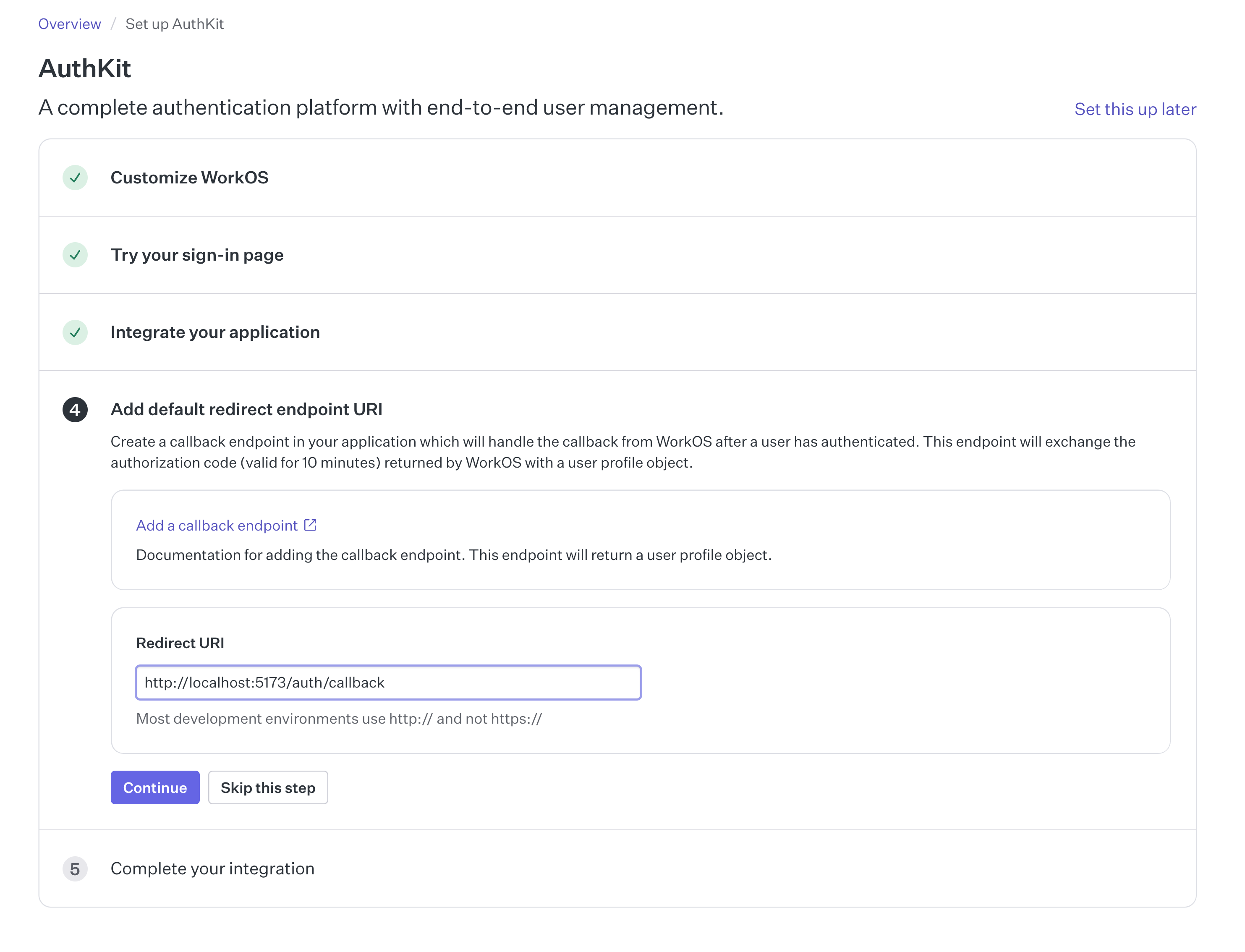
Press the Begin setup button with Use AuthKit's customizable hosted UI selected. These options can be filled out however you like until you get to step 4, Add default redirect endpoint URI.
The Redirect URI is the endpoint that WorkOS will return an authorization code to after signing in. This should match your application's domain and port, with
/callbackas the route. For example, if your application is running atlocalhost:5173then the value here should behttp://localhost:5173/callback.Complete the AuthKit setup.
- Copy your Client ID and API Key
From the get started page under Quick start, find your
WORKOS_CLIENT_IDand copy it.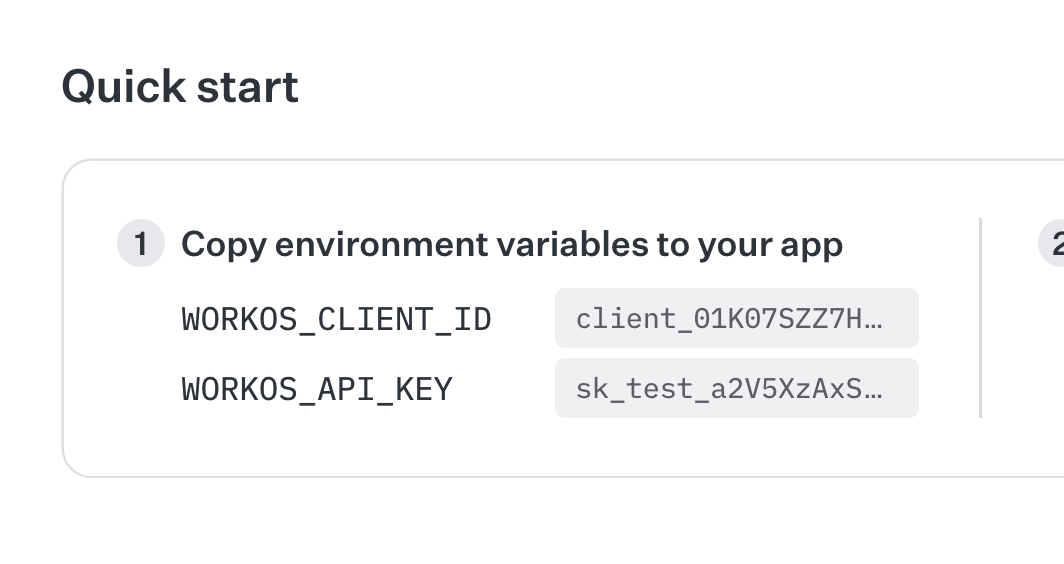
Client configuration
Convex offers a provider that is specifically for integrating with WorkOS
AuthKit called <ConvexProviderWithAuthKit>. It works using WorkOS's
authkit-react SDK.
Once you've completed the WorkOS setup above, choose your framework below to continue with the integration.
See the following sections for the WorkOS SDK that you're using:
React
Example: React with Convex and AuthKit
This guide assumes you have AuthKit set up and have a working React app with Convex. If not follow the Convex React Quickstart first. Then:
- Set up CORS in the WorkOS Dashboard
In your WorkOS Dashboard, go to Authentication > Sessions > Cross-Origin Resource Sharing (CORS) and click on Manage. Add your local development domain (e.g.,
http://localhost:5173for Vite) to the list. You'll also need to add your production domain when you deploy. This enables your application to authenticate users through WorkOS AuthKit.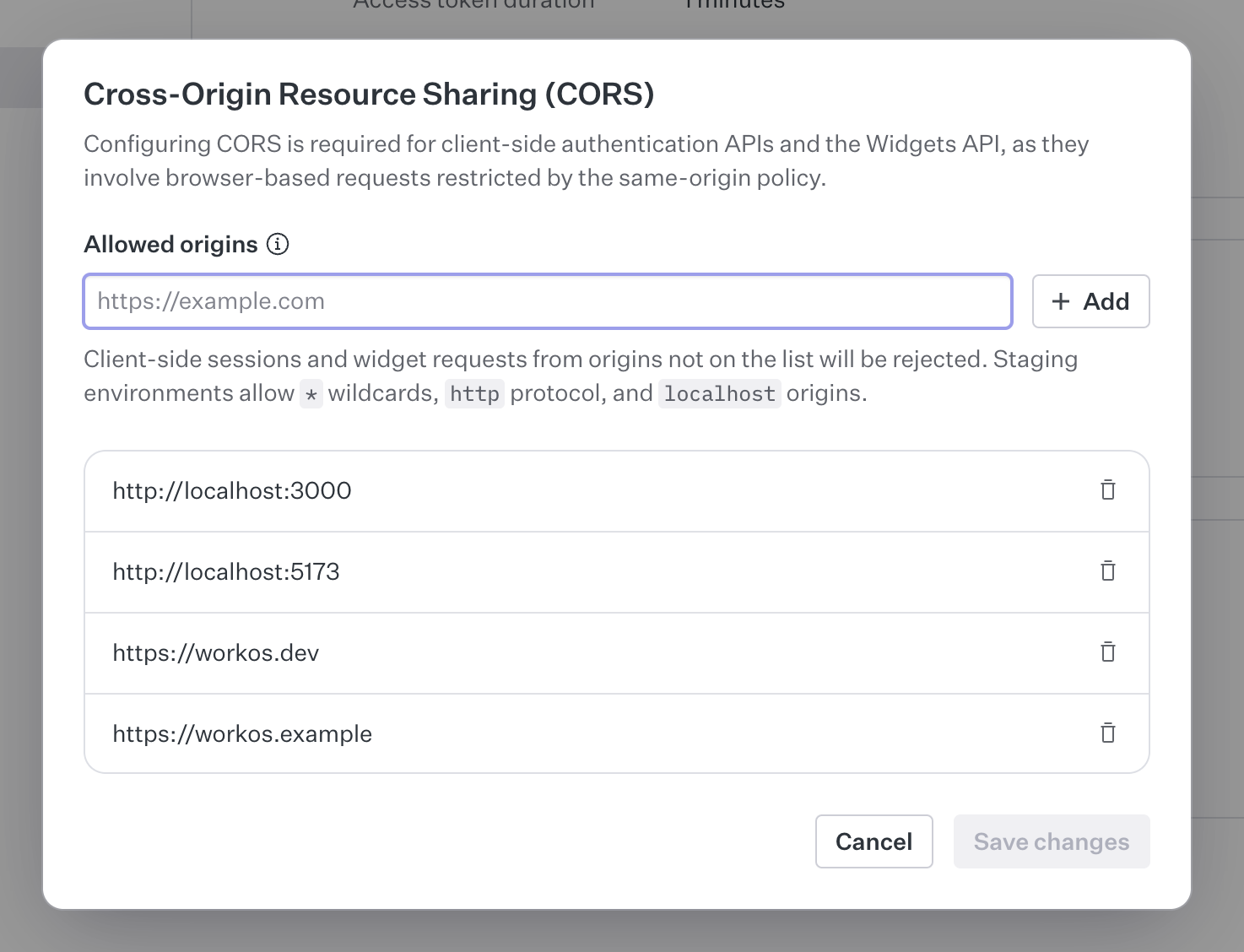
- Set up your environment variables
In your
.env.localfile, add yourWORKOS_CLIENT_IDandWORKOS_REDIRECT_URIenvironment variables. If you're using Vite, you'll need to prefix it withVITE_.Note: These values can be found in your WorkOS Dashboard.
.env.local# WorkOS AuthKit Configuration
VITE_WORKOS_CLIENT_ID=your-workos-client-id-here
VITE_WORKOS_REDIRECT_URI=http://localhost:5173/callback - Configure Convex with the WorkOS Client ID
In your app's
convexfolder, create a new fileauth.config.tswith the following code. This is the server-side configuration for validating access tokens.convex/auth.config.tsTSconst clientId = process.env.WORKOS_CLIENT_ID;
const authConfig = {
providers: [
{
type: 'customJwt',
issuer: `https://api.workos.com/`,
algorithm: 'RS256',
jwks: `https://api.workos.com/sso/jwks/${clientId}`,
applicationID: clientId,
},
{
type: 'customJwt',
issuer: `https://api.workos.com/user_management/${clientId}`,
algorithm: 'RS256',
jwks: `https://api.workos.com/sso/jwks/${clientId}`,
},
],
};
export default authConfig; - Deploy your changes
Run
npx convex devto automatically sync your configuration to your backend.You'll see an error and a link to click to fill in the WORKOS_CLIENT_ID environment variable in your Convex deployment. Follow the link, paste in the WorkOS client ID, save, and you should see the
npx convex devcommand show "Convex functions ready."npx convex dev - Install AuthKit
In a new terminal window, install the AuthKit React SDK:
npm install @workos-inc/authkit-react @convex-dev/workos - Configure ConvexProviderWithAuthKit
AuthKit and Convex both have provider components that provide authentication and client context to your app.
You should already have
<ConvexProvider>wrapping your app. Replace it with<ConvexProviderWithAuthKit>, and pass WorkOS'suseAuth()hook to it.Then, wrap it with
<AuthKitProvider>.<AuthKitProvider>requiresclientIdandredirectUriprops, which you can set toVITE_WORKOS_CLIENT_IDandVITE_WORKOS_REDIRECT_URI, respectively.src/main.tsxTSimport { StrictMode } from "react";
import { createRoot } from "react-dom/client";
import { AuthKitProvider, useAuth } from "@workos-inc/authkit-react";
import { ConvexReactClient } from "convex/react";
import { ConvexProviderWithAuthKit } from "@convex-dev/workos";
import "./index.css";
import App from "./App.tsx";
const convex = new ConvexReactClient(import.meta.env.VITE_CONVEX_URL);
createRoot(document.getElementById("root")!).render(
<StrictMode>
<AuthKitProvider
clientId={import.meta.env.VITE_WORKOS_CLIENT_ID}
redirectUri={import.meta.env.VITE_WORKOS_REDIRECT_URI}
>
<ConvexProviderWithAuthKit client={convex} useAuth={useAuth}>
<App />
</ConvexProviderWithAuthKit>
</AuthKitProvider>
</StrictMode>,
); - Show UI based on authentication state
You can control which UI is shown when the user is signed in or signed out using Convex's
<Authenticated>,<Unauthenticated>and<AuthLoading>helper components.It's important to use the
useConvexAuth()hook instead of AuthKit'suseAuth()hook when you need to check whether the user is logged in or not. TheuseConvexAuth()hook makes sure that the browser has fetched the auth token needed to make authenticated requests to your Convex backend, and that the Convex backend has validated it.In the following example, the
<Content />component is a child of<Authenticated>, so its content and any of its child components are guaranteed to have an authenticated user, and Convex queries can require authentication.src/App.tsxTSimport { Authenticated, Unauthenticated, useQuery } from 'convex/react';
import { api } from '../convex/_generated/api';
import { useAuth } from '@workos-inc/authkit-react';
export default function App() {
const { user, signIn, signOut } = useAuth();
return (
<div className="p-4"> <div className="flex justify-between items-center mb-4">
<h1>Convex + AuthKit</h1>
<button onClick={() => (user ? signOut() : void signIn())}>{user ? 'Sign out' : 'Sign in'}</button>
</div>
<Authenticated>
<Content />
</Authenticated>
<Unauthenticated>
<p>Please sign in to view data</p>
</Unauthenticated>
</div>
);
}
function Content() {
const data = useQuery(api.myFunctions.listNumbers, { count: 10 });
if (!data) return <p>Loading...</p>;
return (
<div>
<p>Welcome {data.viewer}!</p>
<p>Numbers: {data.numbers?.join(', ') || 'None'}</p>
</div>
);
} - Use authentication state in your Convex functions
If the client is authenticated, you can access the information stored in the JWT via
ctx.auth.getUserIdentity.If the client isn't authenticated,
ctx.auth.getUserIdentitywill returnnull.Make sure that the component calling this query is a child of
<Authenticated>fromconvex/react. Otherwise, it will throw on page load.convex/myFunctions.tsTSimport { v } from "convex/values";
import { query } from "./_generated/server";
export const listNumbers = query({
args: {
count: v.number(),
},
handler: async (ctx, args) => {
const numbers = await ctx.db
.query("numbers")
// Ordered by _creationTime, return most recent
.order("desc")
.take(args.count);
return {
viewer: (await ctx.auth.getUserIdentity())?.name ?? null,
numbers: numbers.reverse().map((number) => number.value),
};
},
});
Note: The React template repository includes additional features and functions for a complete working application. This tutorial covers the core integration steps, but the template provides a more comprehensive implementation.
Next.js
Example: Next.js with Convex and AuthKit
This guide assumes you have AuthKit set up and have a working Next.js app with Convex. If not follow the Convex Next.js Quickstart first. Then:
- Set up your environment variables
In your
.env.localfile, add the following environment variables:.env.local# WorkOS AuthKit Configuration
WORKOS_CLIENT_ID=client_your_client_id_here
WORKOS_API_KEY=sk_test_your_api_key_here
WORKOS_COOKIE_PASSWORD=your_secure_password_here_must_be_at_least_32_characters_long
NEXT_PUBLIC_WORKOS_REDIRECT_URI=http://localhost:3000/callback
# Convex Configuration (you don't have to fill these out, they're generated by Convex)
# Deployment used by `npx convex dev`
CONVEX_DEPLOY_KEY=your_convex_deploy_key_here
NEXT_PUBLIC_CONVEX_URL=https://your-convex-url.convex.cloud - Configure Convex with the WorkOS Client ID
In your app's
convexfolder, create a new fileauth.config.tswith the following code. This is the server-side configuration for validating access tokens.convex/auth.config.tsTSconst clientId = process.env.WORKOS_CLIENT_ID;
const authConfig = {
providers: [
{
type: 'customJwt',
issuer: `https://api.workos.com/`,
algorithm: 'RS256',
applicationID: clientId,
jwks: `https://api.workos.com/sso/jwks/${clientId}`,
},
{
type: 'customJwt',
issuer: `https://api.workos.com/user_management/${clientId}`,
algorithm: 'RS256',
jwks: `https://api.workos.com/sso/jwks/${clientId}`,
},
],
};
export default authConfig; - Deploy your changes
Run
npx convex devto automatically sync your configuration to your backend.You'll see an error and a link to click to fill in the WORKOS_CLIENT_ID environment variable in your Convex deployment. Follow the link, paste in the WorkOS client ID, save, and you should see the
npx convex devcommand show "Convex functions ready."npx convex dev - Install AuthKit
In a new terminal window, install the AuthKit Next.js SDK:
npm install @workos-inc/authkit-nextjs @convex-dev/workos - Add AuthKit middleware
AuthKit's
authkitMiddleware()helper grants you access to user authentication state throughout your app.Create a
middleware.tsfile.In your
middleware.tsfile, export theauthkitMiddleware()helper:import { authkitMiddleware } from '@workos-inc/authkit-nextjs';
export default authkitMiddleware({
middlewareAuth: {
enabled: true,
unauthenticatedPaths: ['/', '/sign-in', '/sign-up'],
},
});
export const config = {
matcher: [
// Skip Next.js internals and all static files, unless found in search params
'/((?!_next|[^?]*\\.(?:html?|css|js(?!on)|jpe?g|webp|png|gif|svg|ttf|woff2?|ico|csv|docx?|xlsx?|zip|webmanifest)).*)',
// Always run for API routes
'/(api|trpc)(.*)',
],
}; - Add authentication routes
Create the required authentication routes for WorkOS AuthKit to handle sign-in, sign-up, and callback flows.
These routes enable the authentication flow by providing endpoints for users to sign in, sign up, and return after authentication.
Create the callback route to handle OAuth callbacks:
app/callback/route.tsTSimport { handleAuth } from '@workos-inc/authkit-nextjs';
export const GET = handleAuth(); - Create the sign-in routeapp/sign-in/route.tsTS
import { redirect } from 'next/navigation';
import { getSignInUrl } from '@workos-inc/authkit-nextjs';

export async function GET() {
  const authorizationUrl = await getSignInUrl();
  return redirect(authorizationUrl);
} - Create the sign-up route
To redirect users to WorkOS sign-up:
app/sign-up/route.tsTSimport { redirect } from 'next/navigation';
import { getSignUpUrl } from '@workos-inc/authkit-nextjs';
export async function GET() {
const authorizationUrl = await getSignUpUrl();
return redirect(authorizationUrl);
} - Configure ConvexProviderWithAuthKit
Your Next.js app needs to connect AuthKit authentication with Convex for real-time data. We'll create a single provider component that handles both.
Create the Provider Component
This single component handles:
- WorkOS authentication setup
- Convex client initialization
- Token management between WorkOS and Convex
- Loading states and error handling
Create
components/ConvexClientProvider.tsx:components/ConvexClientProvider.tsxTS'use client';
import { ReactNode, useCallback, useState } from 'react';
import { ConvexReactClient } from 'convex/react';
import { ConvexProviderWithAuth } from 'convex/react';
import { AuthKitProvider, useAuth, useAccessToken } from '@workos-inc/authkit-nextjs/components';
export function ConvexClientProvider({ children }: { children: ReactNode }) {
const [convex] = useState(() => {
return new ConvexReactClient(process.env.NEXT_PUBLIC_CONVEX_URL!);
});
return (
<AuthKitProvider>
<ConvexProviderWithAuth client={convex} useAuth={useAuthFromAuthKit}>
{children}
</ConvexProviderWithAuth>
</AuthKitProvider>
);
}
function useAuthFromAuthKit() {
const { user, loading: isLoading } = useAuth();
const { getAccessToken, refresh } = useAccessToken();
const isAuthenticated = !!user;
const fetchAccessToken = useCallback(
async ({ forceRefreshToken }: { forceRefreshToken?: boolean } = {}): Promise<string | null> => {
if (!user) {
return null;
}
try {
if (forceRefreshToken) {
return (await refresh()) ?? null;
}
return (await getAccessToken()) ?? null;
} catch (error) {
console.error('Failed to get access token:', error);
return null;
}
},
[user, refresh, getAccessToken],
);
return {
isLoading,
isAuthenticated,
fetchAccessToken,
};
} - Add to your layout
Update
app/layout.tsxto use the provider:app/layout.tsxTSimport type { Metadata } from 'next';
import { Geist, Geist_Mono } from 'next/font/google';
import './globals.css';
import { ConvexClientProvider } from '@/components/ConvexClientProvider';
const geistSans = Geist({
variable: '--font-geist-sans',
subsets: ['latin'],
});
const geistMono = Geist_Mono({
variable: '--font-geist-mono',
subsets: ['latin'],
});
export const metadata: Metadata = {
title: 'Create Next App',
description: 'Generated by create next app',
icons: {
icon: '/convex.svg',
},
};
export default function RootLayout({
children,
}: Readonly<{
children: React.ReactNode;
}>) {
return (
<html lang="en">
<body className={`${geistSans.variable} ${geistMono.variable} antialiased`}>
<ConvexClientProvider>{children}</ConvexClientProvider>
</body>
</html>
);
} - Show UI based on authentication state
You can control which UI is shown when the user is signed in or signed out using Convex's
<Authenticated>,<Unauthenticated>and<AuthLoading>helper components. These should be used instead of WorkOS AuthKit'suseAuth()loading states and manual authentication checks.It's important to use the
useConvexAuth()hook instead of WorkOS AuthKit'suseAuth()hook when you need to check whether the user is logged in or not. TheuseConvexAuth()hook makes sure that the browser has fetched the auth token needed to make authenticated requests to your Convex backend, and that the Convex backend has validated it.In the following example, the
<Content />component is a child of<Authenticated>, so its content and any of its child components are guaranteed to have an authenticated user, and Convex queries can require authentication.app/page.tsxTS"use client";
import { Authenticated, Unauthenticated, useQuery } from "convex/react";
import { useAuth } from "@workos-inc/authkit-nextjs/components";
import { api } from "../convex/_generated/api";
import Link from "next/link";
export default function Home() {
const { user, signOut } = useAuth();
return (
<div className="p-4">
<div className="flex justify-between items-center mb-4">
<h1>Convex + AuthKit</h1>
<div className="flex gap-2">
{user ? (
<button onClick={() => signOut()}>Sign out</button>
) : (
<>
<Link href="/sign-in">
<button>Sign in</button>
</Link>
<Link href="/sign-up">
<button>Sign up</button>
</Link>
</>
)}
</div>
</div>
<Authenticated>
<Content />
</Authenticated>
<Unauthenticated>
<p>Please sign in to view data</p>
</Unauthenticated>
</div>
);
}
function Content() {
const data = useQuery(api.myFunctions.listNumbers, { count: 10 });
if (!data) return <p>Loading...</p>;
return (
<div>
<p>Welcome {data.viewer}!</p>
<p>Numbers: {data.numbers?.join(', ') || 'None'}</p>
</div>
);
} - Use authentication state in your Convex functions
If the client is authenticated, you can access the information stored in the JWT via
ctx.auth.getUserIdentity.If the client isn't authenticated,
ctx.auth.getUserIdentitywill returnnull.Make sure that the component calling this query is a child of
<Authenticated>fromconvex/react. Otherwise, it will throw on page load.convex/myFunctions.tsTSimport { v } from "convex/values";
import { query } from "./_generated/server";
export const listNumbers = query({
args: {
count: v.number(),
},
handler: async (ctx, args) => {
const numbers = await ctx.db
.query("numbers")
// Ordered by _creationTime, return most recent
.order("desc")
.take(args.count);
return {
viewer: (await ctx.auth.getUserIdentity())?.name ?? null,
numbers: numbers.reverse().map((number) => number.value),
};
},
});
Note: The Next.js template repository includes additional features and functions for a complete working application. This tutorial covers the core integration steps, but the template provides a more comprehensive implementation.
Next steps
Accessing user information in functions
See Auth in Functions to learn about how to access information about the authenticated user in your queries, mutations and actions.
See Storing Users in the Convex Database to learn about how to store user information in the Convex database.
Accessing user information client-side
To access the authenticated user's information, use AuthKit's User object,
which can be accessed using AuthKit's
useAuth()
hook. For more information on the User object, see the
WorkOS docs.
export default function Badge() {
  const { user } = useAuth();

  return <span>Logged in as {user.firstName}</span>;
}
Configuring dev and prod instances
To configure a different AuthKit instance between your Convex development and production deployments, you can use environment variables configured on the Convex dashboard.
Configuring the backend
In the WorkOS Dashboard, navigate to the
API keys page. Copy your WorkOS
Client ID. This Client ID is necessary for Convex to validate access tokens from
WorkOS AuthKit. In development, its format will be
client_01XXXXXXXXXXXXXXXXXXXXXXXX. In production, it will follow the same
format but represent your production WorkOS application.
Paste your WorkOS Client ID into your .env file, set it as the
WORKOS_CLIENT_ID environment variable. Note that this environment variable is
used server-side and does not need a NEXT_PUBLIC_ prefix.
WORKOS_CLIENT_ID=client_01XXXXXXXXXXXXXXXXXXXXXXXX
Then, update your convex/auth.config.ts file to use the environment variable:
const clientId = process.env.WORKOS_CLIENT_ID;

export default {
  providers: [
    {
      type: "customJwt",
      issuer: `https://api.workos.com/`,
      algorithm: "RS256",
      applicationID: clientId,
      jwks: `https://api.workos.com/sso/jwks/${clientId}`,
    },
    {
      type: "customJwt",
      issuer: `https://api.workos.com/user_management/${clientId}`,
      algorithm: "RS256",
      jwks: `https://api.workos.com/sso/jwks/${clientId}`,
    },
  ],
};
Development configuration
In the left sidenav of the Convex dashboard,
switch to your development deployment and set the WORKOS_CLIENT_ID environment
variable to your development WorkOS Client ID.
Then, to switch your deployment to the new configuration, run npx convex dev.
Production configuration
In the left sidenav of the Convex dashboard,
switch to your production deployment and set the WORKOS_CLIENT_ID environment
variable to your production WorkOS Client ID.
Then, to switch your deployment to the new configuration, run
npx convex deploy.
Configuring WorkOS AuthKit's API keys
WorkOS AuthKit's API keys differ depending on whether they are for development
or production. Don't forget to update the environment variables in your .env
file as well as your hosting platform, such as Vercel or Netlify.
Development configuration
WorkOS API Key for development follows the format sk_test_.... WorkOS Client
ID for development follows the format client_01....
WORKOS_CLIENT_ID="client_01XXXXXXXXXXXXXXXXXXXXXXXX"
WORKOS_API_KEY="sk_test_..."
WORKOS_COOKIE_PASSWORD="your_secure_password_here_must_be_at_least_32_characters_long"
NEXT_PUBLIC_WORKOS_REDIRECT_URI="http://localhost:3000/callback"
Production configuration
WorkOS API Key for production follows the format sk_live_.... WorkOS Client ID
for production follows the format client_01....
WORKOS_CLIENT_ID="client_01XXXXXXXXXXXXXXXXXXXXXXXX"
WORKOS_API_KEY="sk_live_..."
WORKOS_COOKIE_PASSWORD="your_secure_password_here_must_be_at_least_32_characters_long"
NEXT_PUBLIC_WORKOS_REDIRECT_URI="https://your-domain.com/callback"
Additional WorkOS AuthKit Configuration
WorkOS AuthKit requires additional configuration:
Cookie Password: A secure password used to encrypt session cookies. This
must be at least 32 characters long. You can generate a random one with
openssl rand -base64 24.
Redirect URI: The URL where users are redirected after authentication. This must be configured in both your environment variables and your WorkOS Dashboard application settings.
Debugging authentication
If a user goes through the WorkOS AuthKit login flow successfully, and after
being redirected back to your page, useConvexAuth() returns
isAuthenticated: false, it's possible that your backend isn't correctly
configured.
The convex/auth.config.ts file contains a list of configured authentication
providers. You must run npx convex dev or npx convex deploy after adding a
new provider to sync the configuration to your backend.
Common issues with WorkOS AuthKit integration:
- Incorrect Client ID: Ensure the
WORKOS_CLIENT_IDin your Convex environment matches your WorkOS application - Missing Environment Variables: Verify all required WorkOS environment variables are set in both your local environment and Convex dashboard
- Redirect URI Mismatch: Ensure the
NEXT_PUBLIC_WORKOS_REDIRECT_URImatches what's configured in your WorkOS Dashboard - Missing
audclaim: WorkOS JWTs may not include theaud(audience) claim by default, which Convex requires for token validation. Check your WorkOS Dashboard JWT configuration to ensure the audience claim is properly set to your Client ID
For more thorough debugging steps, see the WorkOS AuthKit documentation or Debugging Authentication.
Under the hood
The authentication flow looks like this under the hood:
- The user clicks a login button
- The user is redirected to a page where they log in via whatever method you configure in AuthKit
- After a successful login AuthKit redirects back to your page, or a
different page which you configure via the
redirectUriprop. - The
AuthKitProvidernow knows that the user is authenticated. - The
ConvexProviderWithAuthKitfetches an auth token from AuthKit. - The
ConvexReactClientpasses this token down to your Convex backend to validate - Your Convex backend retrieves the public key from AuthKit to check that the token's signature is valid.
- The
ConvexReactClientis notified of successful authentication, andConvexProviderWithAuthKitnow knows that the user is authenticated with Convex.useConvexAuthreturnsisAuthenticated: trueand theAuthenticatedcomponent renders its children.
ConvexProviderWithAuthKit takes care of refetching the token when needed to
make sure the user stays authenticated with your backend.